



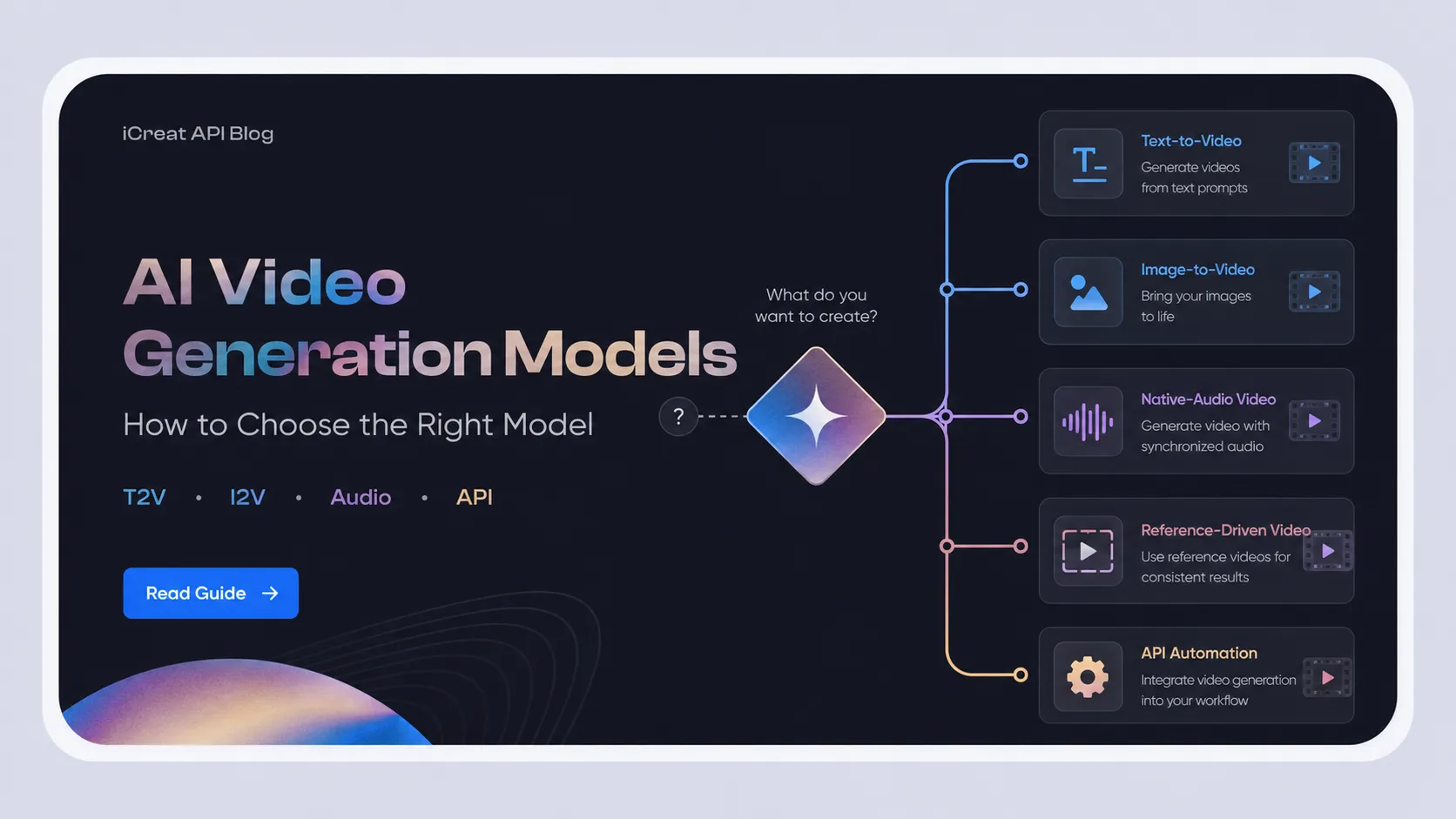
AI video generation models should be chosen by workflow, not by demo appeal. A model that looks strong in a highlight reel can still be the wrong production choice if your product needs image-to-video control, native audio, predictable pricing, or an API path you can actually use.
At iCreat, we treat model choice as a routing decision: start with the output you need, identify the right input mode, compare current model pages, then move from Playground testing to programmatic use when the workflow needs automation. That is why this guide is not a loose list of popular AI video models. It is a decision framework for creators, founders, and developers who need to choose between text-to-video, image-to-video, reference-driven, native-audio, and production API workflows.
If you are already comparing Seedance, Veo, Kling, or Hailuo routes inside iCreat, the fastest useful question is not "Which model is best?" It is "Which model matches the input, control level, cost profile, and access path my product needs?"
Key Takeaways
- Choose the workflow first: text-to-video, image-to-video, reference-driven video, native-audio video, or API automation.
- Do not assume a provider announcement means the same version, parameters, pricing, or route are available in every platform.
- For product images, ecommerce clips, characters, and brand assets, image-to-video often gives more control than rebuilding the scene from text.
- For clips with sound, check native-audio support separately. Google documents Veo 3.1 video generation with native audio in the Gemini API, but each platform route still needs its own availability check.
- For production, compare async handling, status polling, retries, storage, pricing, and moderation before you write the feature around one model.
- In iCreat, start from the model hub, inspect the relevant model pages, then use iCreat docs and pricing before scaling usage.
Choose the Workflow Before the Model
The right video model depends on the job the user is trying to complete. A social ad generator, a game concept tool, a product animation workflow, and a developer-facing video feature can all need "AI video," but they do not need the same model behavior.
Use this table before comparing brand names.
| Workflow Need | Model Type to Check First | What Matters Most | iCreat Next Step |
|---|---|---|---|
| Generate a new scene from a written idea | Text-to-video | Prompt adherence, camera language, motion quality, aspect ratio options | Browse video models and test prompt fit |
| Animate an approved image, product shot, or character frame | Image-to-video | Source-frame fidelity, identity consistency, motion control, brand safety | Compare image-to-video routes such as Veo 3.1 image-to-video, Kling v2.1 image-to-video, and Hailuo 02 image-to-video Pro |
| Build a multi-shot sequence or storyboard | Reference or multi-shot video | Continuity, character control, shot planning, editability | Start with model family research, then confirm current iCreat exposure |
| Generate clips with dialogue, effects, or ambient sound | Native-audio-capable video | Whether audio is actually generated in the route you use | Verify audio support in provider docs and the live route |
| Add video generation to a product | Video model API workflow | Docs, async jobs, pricing, errors, moderation, storage | Review iCreat docs, pricing, and the model page |
| Avoid unsupported model assumptions | Availability check | Whether the model appears in the current iCreat model hub | Use listed iCreat models only when planning production |
The workflow-first approach also prevents a common cost mistake. A team may pick a premium model for every request because it looks better in one demo, when a faster or lower-cost model is enough for previews and a stronger route is only needed for final renders.
The Main Types of AI Video Generation Models
AI video generation models now fall into several practical categories. The boundary matters because input type affects output control, pricing, user experience, and the API surface your product needs.
Text-to-Video Models
Text-to-video models turn a written prompt into a generated clip. They are useful when the user does not have a starting image and wants a new visual scene, animation concept, ad idea, or B-roll shot.
The tradeoff is control. A prompt can describe a product, character, or camera move, but the model still has to invent the visual details. That can be acceptable for ideation and abstract scenes. It is riskier when the subject must match a real product, person, brand color, logo, or exact composition.
For iCreat users, this is the point where a model page matters. Start with available text-to-video options such as Veo 3.1 text-to-video, Kling v2.1 text-to-video, Seedance 2.0, or Seedance 2.0 Fast, then verify parameters, pricing, and supported inputs against the live listing.
Image-to-Video Models
Image-to-video models use a source image as the visual anchor, then generate motion from it. This is often the better route for ecommerce, ads, character workflows, game art, thumbnails, and short product clips because the model starts from an approved frame.
For example, a marketer with a finished product image usually should not ask a text-to-video model to recreate the product from scratch. A more controlled workflow is to use the approved product shot as the first frame, then test motion with image-to-video models.
In iCreat, relevant model pages include Google Veo 3.1 image-to-video, Kling v2.1 image-to-video, and MiniMax Hailuo 02 image-to-video Pro. Use the live listing as the final reference for exposed capability, parameters, and model-specific cost.
Reference-Driven and Multi-Shot Models
Reference-driven video models are designed for more controlled visual direction, such as preserving characters, using reference images, or creating multi-shot sequences. They are important for workflows where one clip is not enough.
Official model pages and guides show this category moving quickly. Dreamina describes Seedance 2.0 around multi-shot storytelling and multimodal control, which is why Seedance belongs in the shortlist for creative video workflows.
The iCreat position should stay precise: the available video list used in this article is Seedance 2.0, Seedance 2.0 Fast, Veo 3.1 text-to-video, Veo 3.1 image-to-video, Kling v2.1 text-to-video, Kling v2.1 image-to-video, Hailuo 02 Pro, and Hailuo 02 image-to-video Pro.
Native-Audio Video Models
Native-audio video models can generate or support video with sound, such as dialogue, sound effects, or ambient audio. This is a major difference from silent video generation, especially for ads, trailers, short films, and social clips.
Google's Gemini API video documentation describes Veo 3.1 video generation with native audio. That makes Veo 3.1 an important model family to evaluate when sound is part of the output requirement.
Still, native audio should be checked at the exact route level. A provider may support a capability in one product path while another platform exposes a different subset, version, or parameter set. If audio is part of the product promise, validate the route in both the model page and the docs.
API and Production Model Routes
When a video model becomes part of a product, the model is only half the decision. The platform route matters too.
Production video generation usually needs async job creation, status polling or callbacks, failure handling, prompt and asset validation, storage decisions, cost tracking, and a user experience that can handle waiting. MiniMax's video generation docs and video pricing docs, for example, show why provider documentation and billing references belong in the evaluation step, not after launch.
This is where iCreat is useful for the right reader. A creator can test models directly. A developer can later use iCreat as the operating path for automation, one account, one dashboard, and a clearer route to docs and pricing.
What to Compare Before Testing a Model
Compare AI video models by constraints, not vibes. The better your comparison sheet, the less likely you are to overpay, under-control the output, or build on a route that changes before launch.
| Criterion | What to Check | Why It Matters |
|---|---|---|
| Input support | Text, image, references, first frame, last frame, multi-image inputs | Determines whether the model can match your real workflow |
| Output format | Duration, aspect ratio, resolution, audio, file format | Affects product UX, storage, editing, and publishing |
| Prompt adherence | How well the model follows subject, action, style, and camera instructions | Crucial for user-facing creative tools |
| Source fidelity | Whether the model preserves product, character, or brand details | Important for ecommerce and identity-sensitive workflows |
| Motion and physics | Camera movement, object motion, hand/body behavior, temporal consistency | Separates usable clips from novelty output |
| Native audio | Whether the exact route generates audio and how it handles sound prompts | Required for dialogue, effects, and finished social content |
| Control features | References, seed behavior, shot control, extension, editing support | Determines whether outputs are repeatable enough |
| API workflow | Job creation, polling, callbacks, errors, docs, rate limits | Defines implementation effort and production reliability |
| Pricing | Per-generation cost, model-specific pricing, failed-job handling | Determines whether the workflow can scale |
| Safety and rights | Uploaded assets, human faces, brand marks, commercial terms | Reduces legal, policy, and moderation risk |
| Current availability | Live model page, docs, pricing, provider status | Prevents stale model assumptions from becoming product debt |
If you only have time to test two things, test the exact input your users will submit and the exact output your product must deliver. A generic model demo does not prove fit for a product image, a recurring character, a mobile aspect ratio, or a batch API workflow.
iCreat Video Models to Compare
There is no universal best AI video generation model in iCreat. The practical shortlist changes by input mode, audio requirement, visual style, price sensitivity, and access path.
| iCreat Model | What to Evaluate | Useful For | Model Page |
|---|---|---|---|
| Seedance 2.0 | Prompt-to-video fit, storytelling behavior, motion style, and cost | Creative ideation, short video concepts, visual exploration | Seedance 2.0 |
| Seedance 2.0 Fast | Iteration speed, preview workflows, cost-per-test, and prompt stability | Rapid creative testing before final generation | Seedance 2.0 Fast |
| Google Veo 3.1 Text-to-Video | Prompt adherence, native-audio expectations, and text-first scene generation | Text-prompt video workflows where richer video behavior matters | Veo 3.1 text-to-video |
| Google Veo 3.1 Image-to-Video | Source-frame fidelity, image anchoring, and motion from approved visuals | Product shots, concept art, and image-led clips | Veo 3.1 image-to-video |
| Kling v2.1 Text-to-Video Master | Motion style, prompt interpretation, and text-driven shot creation | Motion-heavy creative clips from text prompts | Kling v2.1 text-to-video |
| Kling v2.1 Image-to-Video Master | Motion from a source image, visual continuity, and image preservation | Image-led animation and controlled visual experiments | Kling v2.1 image-to-video |
| MiniMax Hailuo 02 Pro | Prompt-driven video quality, output style, and production cost | General video generation and product evaluation | Hailuo 02 Pro |
| MiniMax Hailuo 02 Image-to-Video Pro | Source image fidelity, motion strength, and final clip usability | Image-to-video workflows that need a stronger final render | Hailuo 02 image-to-video Pro |
These are the video models from the current iCreat availability context used in this article. If a provider announces a newer version elsewhere, do not treat it as available in iCreat until it appears in the model hub or an approved model page.
When iCreat Makes Sense
iCreat makes the most sense when the reader needs to compare video model routes before committing to one provider, one integration, or one production cost model. That is the business reason this page belongs on iCreat instead of a generic AI model blog.
Start in the iCreat model hub when you need to inspect available video models by provider, version, and capability. If the workflow is text-first, compare pages such as Seedance 2.0, Seedance 2.0 Fast, Veo 3.1 text-to-video, and Kling v2.1 text-to-video. If the workflow starts from a product image, character frame, or approved concept art, compare Veo 3.1 image-to-video, Kling v2.1 image-to-video, and Hailuo 02 image-to-video Pro.
For developers, the stronger iCreat use case is not just "generate a clip." It is testing multiple model families, finding the route that fits the product, reviewing iCreat pricing, then using iCreat docs when the workflow needs automation. A small team can evaluate the creative output first and postpone deeper integration work until the model choice is more stable.
We have also published related pieces that can help with adjacent decisions: Seedance 2.0 Web vs API for access-path decisions and our guide to leading AI video creation companies for platform-level evaluation.
API and Production Checks Before You Build
Do the production checks before you build UI around one model. Video generation is usually asynchronous, expensive enough to plan, and variable enough that a weak integration can hurt the user experience even when the model itself is strong.
Use this checklist before shipping:
- Confirm the exact model page, provider, version, and capability route.
- Check whether the workflow is text-to-video, image-to-video, reference-driven, or native-audio.
- Review current docs for request flow, task creation, status handling, and response structure.
- Plan for async waiting states, polling, callbacks, retries, failed jobs, and user cancellation.
- Decide where uploaded assets and generated videos are stored.
- Estimate cost using current pricing, not cached article data.
- Test the exact user input pattern, including weak prompts and oversized uploads.
- Add safeguards for faces, brand assets, copyrighted material, and commercial usage.
- Track model-specific failures separately so you can switch routes if a model becomes unavailable or too expensive.
- Review the current iCreat dashboard before production rollout so account and usage details are visible.
Avoid inventing endpoints, parameters, or response fields from memory. For implementation, the live docs and current model page should win over any blog post, including this one.
Common Mistakes When Choosing AI Video Models
The biggest mistake is choosing from a demo reel instead of a workflow test. A polished announcement video tells you what a model can look like at its best. It does not tell you whether the model fits your source images, product constraints, aspect ratios, prompts, pricing, or API route.
The second mistake is ignoring input mode. If your users upload product photos, a text-to-video model may create more drift than an image-to-video model. If your users start with a script and no visual asset, image-to-video may be the wrong starting point.
The third mistake is assuming upstream provider capability equals current platform exposure. Google, Kling, MiniMax, and ByteDance may each publish details about model families, but those details do not automatically mean the same version and parameters are available through every route.
The fourth mistake is using stale pricing. Video generation costs can change by model, duration, input mode, output quality, and provider. Anchor cost estimates and paywall logic to the pricing page instead of old comparison tables.
The fifth mistake is building around a model that is not listed in your actual platform route. If a model does not appear in the iCreat model hub, do not plan a production workflow around it as if it were available.
Pricing, Rights, and Safety Checks
Pricing, rights, and safety are not afterthoughts for AI video generation models. They decide whether a workflow can be used repeatedly, commercially, and safely inside a product.
For pricing, use iCreat pricing and any relevant provider pricing source when estimating production cost. Exact prices should not be copied into a planning doc unless they are dated and rechecked close to launch.
For rights, make sure the user has permission to upload source images, faces, brand assets, product photos, and reference material. A technically impressive image-to-video output can still be unusable if the source asset is not cleared for commercial use.
For safety, plan moderation around both inputs and outputs. Human faces, public figures, brand marks, unsafe prompts, and copyrighted characters can create review requirements. Model docs and platform terms should guide what your product allows, blocks, or escalates.
FAQ
Final Decision Framework
If you are choosing AI video generation models for 2026, use this order:
- Pick the workflow: text-to-video, image-to-video, reference control, native audio, or API automation.
- Shortlist model families that actually support that workflow.
- Confirm current iCreat model pages and provider docs.
- Test with your real input, not a generic demo prompt.
- Review pricing before repeated generation or production usage.
- Move to docs and dashboard setup only after the model route is stable enough to justify engineering time.
For a practical next step, browse AI video generation models in the iCreat model hub, compare the relevant model detail pages, then review iCreat docs and current pricing before you commit engineering time.