



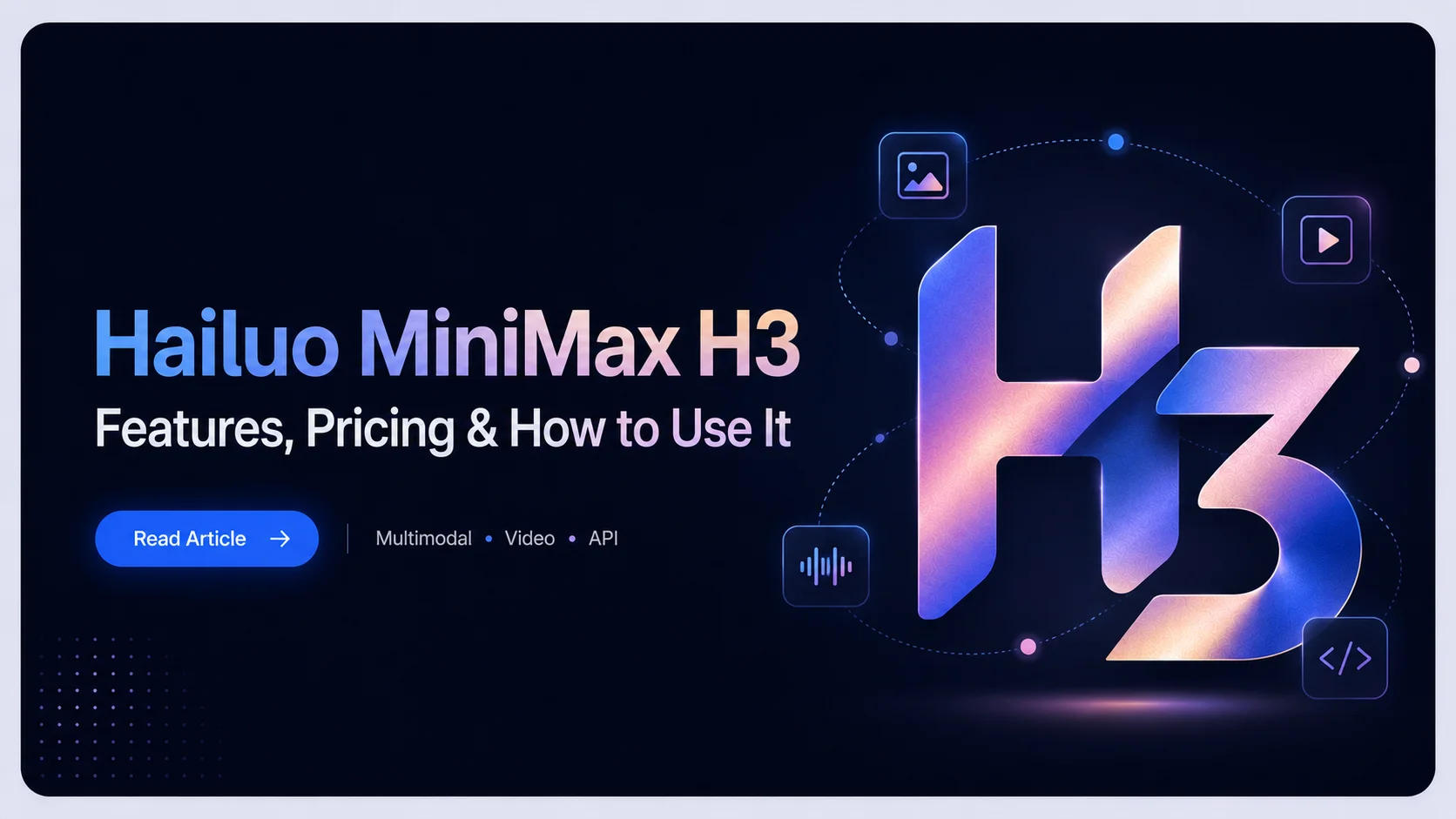
MiniMax released Hailuo MiniMax H3 at 09:45 Beijing time on July 31, 2026. This was not a routine minor update. It was MiniMax's first release to bring open weights, text and multiple media inputs, and native stereo audio into one video model.
H3 arrived at a clear moment in the market. Seedance already sits at the center of many AI video discussions, and teams often use it as a benchmark for realistic visuals and finished output. H3 does not try to repeat that path. Instead, it shifts the focus to more open access, richer reference control, and several ways to use the model, from a Playground and API to local workflows.
If you want to see whether H3 fits your footage and workflow now, start with the iCreat MiniMax H3 Playground. Once the direction is clear, use the iCreat API to bring H3 into a product or automated workflow. This guide explains both paths, along with H3's capabilities, costs, and decision boundaries.
What Is Hailuo MiniMax H3?
MiniMax describes H3 on its product page as an open-weight, general-purpose multimodal video model. It accepts more than a text prompt. Images, video clips, and audio can all serve as references in the same generation. For creators, this means they can bring character, action, camera movement, and sound into one control surface. For developers, it means H3 does not have to live inside one web tool.
Here are H3's core specifications.
| Item | Hailuo MiniMax H3 |
|---|---|
| Release date | July 31, 2026 |
| Output duration | 5 to 15 seconds |
| Output resolution | 1440p (2K); 768p is marked as coming soon |
| Frame rate | 24 FPS |
| Audio | Every generation includes native stereo audio |
| Prompt length | Up to 7,000 characters |
| First/Last Frame | 0, 1, or 2 images; no image means text-to-video |
| Omni Reference | Up to 9 images, 3 videos, and 3 audio clips; up to 12 mixed files in total |
"Open weight" is one of H3's most important differences from video models that are only available through closed online services. It does not mean zero cost, and it does not mean every team should begin with local deployment. It means that, beyond an online experience and an API, teams can also bring H3 into their own stack and local workflows.
Why H3 Belongs Back on Your Shortlist
Seedance's strong position makes it hard for a new model to earn attention with the simple claim that its visuals look good. H3 is worth a closer look because it offers a different set of reasons to choose it.
First, H3 makes multimodal references concrete. It does not just say that it supports images and video. It sets clear rules for the number, length, and combination of image, video, and audio inputs. With up to 12 mixed files, one generation can include character appearance, camera movement, performance, and sound direction. For teams that care about control, this is more useful than a text prompt alone.
Second, native stereo audio is part of the product, not an afterthought. Many video models treat visuals and sound as separate tasks. H3 includes stereo audio in every generation. If you use an audio reference, it must be uploaded with at least one image or video. This makes sound part of the generation setup instead of something added at the end.
Third, H3 signals an open-weight and local-run option. The ComfyUI author has confirmed support once the weights and code are released, and has said an optimized version can run on an RTX 3060, though slowly. This is not a required path for people who do not need local workflows. For teams that need control over their model, environment, or provider choices, it is a practical option.
Fourth, cost is another reason H3 enters this competition. Its creator preview described the cost per minute of generation as about half that of competing models. Along with the per-second prices on the product page, this gives H3 a clear appeal for cost-sensitive creators and teams.
Fifth, H3 entered the main comparison conversation on the day it launched. Kling, Seedance 2.5, and FLUX 3 are the reference points creators bring up again and again. That matters. H3 is not looking for use cases in an empty market. It is offering a different answer on control, access, and cost in a market where Seedance has already set high expectations.
How to Use H3: Start With the iCreat Playground, Then Add the API When Needed
Start in the iCreat MiniMax H3 Playground
If you are still deciding whether H3 fits your prompts and source materials, start with the iCreat model hub and open the MiniMax H3 Playground. Do not begin by uploading every file you have. First answer two questions: can H3 create the visual direction you need with text or keyframes alone, and does it understand the relationship between your materials once you add image, video, or audio references?
This lets you decide whether H3's reference controls are worth more time before you move to an API or local workflow. For short clips that need character consistency, camera references, or sound direction, the Playground is the fastest way to form a useful opinion.
Use the iCreat API When You Need Integration
Once you have chosen the model, the question changes from "Can it generate?" to "Can it fit into our workflow?" This is where the iCreat API documentation comes in. It is built for developers and teams that want to place H3 inside a product feature, content pipeline, or automated task. You can manage API keys, usage, and request records in the iCreat dashboard.
Before choosing the API path, define three variables: output length, resolution, and whether you need to upload video or extra images. They directly affect both cost and request design. For media-heavy workflows, H3 has a 64 MB API request-body limit, and its product page recommends passing media through URLs when possible. Build those limits into the integration from the start.
How to Choose Among Other Access Options
You can also use H3 through Hailuo or MiniMax official channels, fal.ai, TopView, and ComfyUI. These options solve different problems. You do not need to treat them as teams to support.
| Your goal | Best route | Why |
|---|---|---|
| Check whether H3 fits your current creative direction | iCreat MiniMax H3 Playground | Test the combination of prompts and reference materials first |
| Add H3 to a product or content workflow | iCreat API | Move from testing into system integration |
| You already use multi-provider routing | A provider such as fal.ai | Evaluate H3 in an existing model-routing setup |
| You already create in a TopView workflow | TopView | Assess H3 in a familiar creative environment |
| You need local weight and workflow control | ComfyUI | Use a local workflow, while accounting for deployment and runtime costs |
| You prefer the model maker's product | Hailuo or MiniMax official channels | A direct path for users who prefer official access |
The point of this table is not to say that there is only one valid route. First identify whether your real need is testing, integration, an existing toolchain, or local control. Because iCreat provides both a Playground and an API, it covers the two most common decisions for teams moving from a trial to integration.
H3's Core Controls: First/Last Frame, Omni Reference, and @ Pin
You can understand H3's control system through two input modes.
First/Last Frame uses key visuals to set the starting point or ending point. It accepts 0, 1, or 2 images. With no image uploaded, it works as regular text-to-video. This mode works well when you want to lock down the base visual direction and let the model create the motion and transition in between.
Omni Reference is H3's key difference. It lets images, videos, and audio work together in one generation: up to 9 images, 3 videos, and 3 audio clips, with no more than 12 source files in total. Each video or audio clip can be 2 to 15 seconds long, and the total for each media type can reach 15 seconds. Audio cannot be used on its own. You need at least one image or video with it.
The launch experience also showed @ mentions and pinned files. Their
purpose is not to make prompts look more advanced. They connect a specific part of
the prompt to a specific file. When you work with several images, video clips, and
audio tracks, this binding can reduce confusion around phrases like "it," "this
shot," or "this sound."
H3 supports 21:9, 16:9, 4:3, 1:1, 3:4, and 9:16 aspect ratios. Omni Reference also offers an Auto mode, where the model chooses the aspect ratio. Before you use H3, thinking through the number of reference files, audio conditions, and framing is usually more important than writing an extremely long prompt.
Where H3 Fits Best: Post-Production, Ads, and Motion Design
H3 is useful for more than creating a scene from scratch. Its strength is turning existing visual assets into a finished piece with rhythm, sound, and polish. Compared with Seedance, which leans more toward pre-production, cinematic storytelling, and complex camera work, H3 is better suited to post-production packaging, advertising visuals, and motion design.
It can create a dynamic music video with lyrics and rhythm, animate the layout, type, and visual elements from several flat posters, or turn a set of photos into a styled Vlog with decoration, pacing, and sound. Film titles, lyric VJ work, fashion campaigns, game UI, scrolling web motion, and product launch videos are all areas where H3 can be a strong fit.

Hailuo MiniMax H3 Pricing: How to Estimate the Cost of One Generation
H3's product page lists prices by the second. Output costs $0.09 per second at 768p and $0.13 per second at 2K. The product page still marks 768p as coming soon. At the listed output rate, a 15-second 2K video costs about $1.95, while a 15-second 768p video costs about $1.35.
Your total cost is not based on output alone. Uploaded video is billed by its input duration and the selected output resolution. The first five images are free, and each additional image costs $0.04. Audio input is free.
| Item | Listed price |
|---|---|
| 768p output | $0.09 / second |
| 2K output | $0.13 / second |
| Video input | Billed by input duration and output resolution: $0.09 / second at 768p, $0.13 / second at 2K |
| Image input | First 5 images free, then $0.04 / image |
| Audio input | Free |
You can use a simple formula to budget H3: output length and resolution set the base cost; video input and images after the fifth set the added cost. Launch information described H3's cost per minute as about half that of competing models, which is an important part of its cost story. When you use iCreat, check the live price and plan details shown on iCreat.
Hailuo H3 vs. Kling vs. Seedance 2.5 vs. FLUX 3: How to Choose
You do not need to test all four models. Start with the biggest need in your project: long shots, control, an existing workflow, or access to newer capabilities.
| If you need to solve this problem | Choose |
|---|---|
| Continuous scenes over 30 seconds, 4K, 50 reference assets, or a change to one area of an image | Seedance 2.5 |
| A highly controlled 5 to 15-second clip using image, video, and audio references, with room for open weights or local runs | Hailuo MiniMax H3 |
| You already have Kling assets, prompts, and First/Last Frame workflows | Kling AI |
| Video or audio continuation, multilingual dialogue, or automatic multi-shot chaining, and you can use an Early Access product | FLUX 3 |
The reason to choose H3 is clear. Its goal is not to match Seedance 2.5 on long duration. It uses 2K, native stereo audio, up to 12 mixed reference files, and an open-weight path to solve multimodal control for short clips.
For long narratives, 4K refinement, and local image edits, choose Seedance 2.5. If you already have a Kling workflow, stay with the Kling version that supports it. If you want to explore next-generation multimodal capabilities, evaluate FLUX 3. H3 is the better fit only when you need short clips, several reference assets, native audio, or local control. If your shortlist includes more than these four models, use this AI video model selection guide to compare inputs, cost, and API conditions.
When your project matches those H3 conditions, validate the results in the iCreat MiniMax H3 Playground first. Once it fits, connect it through the iCreat API.
How Developers Should Integrate H3
Developers can break the decision into three steps.
First, use the iCreat MiniMax H3 Playground to check model behavior. Test your real prompts, number of assets, target duration, and output resolution. Confirm that H3's control system solves a real product need. Without this step, adding an API can become little more than adding another model name to your system.
Second, use the iCreat API once the need is proven. Define how input media will be passed, how output duration will be limited, and how 2K costs will be calculated in your product logic. H3 accepts JPG, JPEG, PNG, WEBP, HEIC, and HEIF images; H.264/AVC and H.265/HEVC video; and WAV and MP3 audio. For workflows with many media files, use URLs when possible to avoid the 64 MB request-body limit.
Third, decide whether you need provider routing or local deployment. Teams that already use multi-model routing can assess H3 alongside Seedance, Veo, and other endpoints through fal.ai. The ttv-pipeline project includes MiniMax or Hailuo as a first-class provider in this type of setup. Teams that need to hold weights and control local workflows can choose ComfyUI, but should include GPU needs, generation speed, and maintenance in the project budget.
The order matters: confirm the model's capabilities first, integrate the API second, and only then decide whether you need a more complex routing or local environment.
Limits to Know Before Using H3
H3's strengths do not remove its limits. Each output is only 5 to 15 seconds long, so long narratives still need separate generations and later editing. For a fuller approach, see this long-form AI video workflow guide. Audio can be a reference, but it cannot be uploaded by itself. Although 768p has a listed price, the product page still marks it as coming soon, so check the live page for available modes.
File limits also apply. A single video file cannot exceed 50 MB, one image cannot exceed 30 MB, and one audio clip cannot exceed 15 MB. Video supports H.264/AVC and H.265/HEVC, plus embedded AAC or MP3 audio. These limits directly affect both API integration and asset preparation.
H3's release sequence starts with the API, with weights to follow. ComfyUI support is ready, but local use is not a zero-effort option. For most people, it makes more sense to validate H3 in the iCreat Playground first, then decide whether they need an API or local workflow.
Conclusion: Who Should Use H3 Now?
H3 fits three types of users.
The first group is creators who need multimodal control. They want to bring character, camera work, action, and sound into the same generation, not just enter one prompt. The second group is technical teams that want open weights and a local workflow option. The third group is people already assessing Seedance, Kling, or FLUX 3 who want another path with native audio and stronger multimodal reference support.
H3 should not be treated as the default replacement for every project. If your task requires a continuous output longer than 15 seconds, or your current model already delivers stable quality and workflow results, there is no reason to switch at once. The better move is to use the same prompt and source materials to see whether H3 solves your most specific control problem.
Start with the iCreat MiniMax H3 Playground to get that answer. When your test shows that H3 deserves a place in your product or workflow, connect it through the iCreat API. This is not about using a platform for its own sake. It lets model selection, capability testing, and technical integration happen in a sensible order.